 msgvault

Multi-Account
One Secret, Many Tokens
A single client_secret.json supports all your Gmail accounts. You do not need to create separate OAuth credentials or edit your config between accounts. Each add-account call authorizes one account and stores a separate token file.
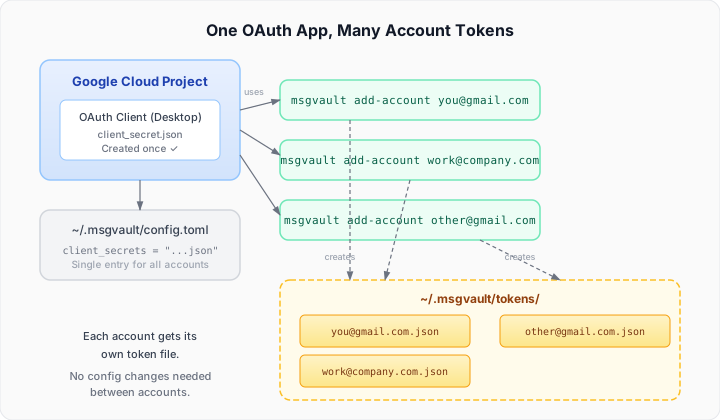
See the OAuth Setup Guide for the full setup walkthrough.
Adding Accounts
# Gmail accounts (OAuth)msgvault add-account personal@gmail.commsgvault add-account work@company.com
# IMAP accounts (password)msgvault add-imap --host imap.fastmail.com --username you@fastmail.com
Gmail accounts open a browser for OAuth authorization. IMAP accounts prompt for a password and test the connection. All accounts share the same SQLite database and attachment storage.
Syncing
Sync all accounts at once by omitting the email argument:
# Full sync all accountsmsgvault sync-full
# Incremental sync all accountsmsgvault sync
Or sync a specific account:
msgvault sync-full personal@gmail.commsgvault sync work@company.comIf a token expires during sync, msgvault prints the re-authorization URL with the account name so you can select the correct Google account. It will not auto-launch a browser during re-auth to prevent accidentally authorizing the wrong account.
Cross-Account Search
Search queries run across all accounts by default:
msgvault search "quarterly report"Use --account to limit results to a specific account:
msgvault search "quarterly report" --account work@company.comTUI Filtering
Filter the TUI to a specific account:
msgvault tui --account work@company.comOr press a in the TUI to cycle through account filters interactively.