 msgvault

Google OAuth Setup
msgvault requires OAuth credentials to access the Gmail API. This guide walks through the complete setup.
Step 1: Create a Google Cloud Project
- Go to Google Cloud Console
- Create a new project or select an existing one
- Note your project ID
Step 2: Enable the Gmail API
- Navigate to APIs & Services > Library
- Search for “Gmail API”
- Click Enable
Step 3: Configure OAuth Consent Screen
- Go to APIs & Services > OAuth consent screen
- Choose External user type (or Internal for Google Workspace)
- Fill in required fields:
- App name:
msgvault - User support email: your email
- Developer contact email: your email
- App name:
- Click Save and Continue
- On the Scopes page, click Add or Remove Scopes
- Add the scope:
https://www.googleapis.com/auth/gmail.modify - Save and continue through the remaining screens
- Under Test users, add all Gmail addresses you want to sync
Step 4: Create OAuth Client Credentials
- Go to APIs & Services > Credentials
- Click Create Credentials > OAuth client ID
- Choose Desktop application as the application type
- Name it
msgvault(or similar) - Click Create
- Download the JSON file
- Save it as
client_secret.jsonin a secure location
Step 5: Configure msgvault
Create config.toml in your msgvault data directory:
- macOS / Linux:
~/.msgvault/config.toml - Windows:
C:\Users\<you>\.msgvault\config.toml
[oauth]client_secrets = "/path/to/your/client_secret.json"
[sync]rate_limit_qps = 5
On Windows, use forward slashes or escaped backslashes for the path:
[oauth]client_secrets = "C:/Users/you/Downloads/client_secret.json"Step 6: Add Your Account
msgvault add-account you@gmail.comThis opens your browser to Google’s OAuth consent page. Sign in, grant access, and tokens are stored locally in ~/.msgvault/tokens/.
Multiple Accounts
A single client_secret.json works for all your Gmail accounts. You do not need separate OAuth credentials, config entries, or projects per account. Each add-account call creates a separate token file — no config changes required between accounts.
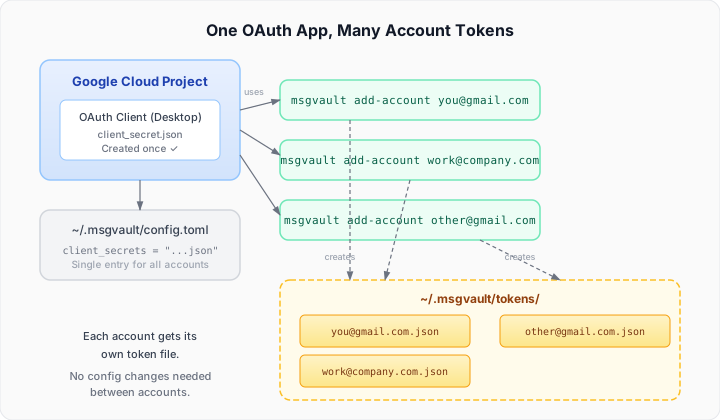
# Same client_secret.json, different accountsmsgvault add-account personal@gmail.commsgvault add-account work@company.commsgvault add-account other@gmail.com
# Sync all at once — no config editing neededmsgvault sync
Each account goes through its own browser authorization once. After that, msgvault sync refreshes all tokens automatically.
Headless Server Setup
When running msgvault on a headless server (SSH, VPS, Docker), there is no browser available for OAuth. Google’s device code flow does not support Gmail scopes, so you must authorize on a machine with a browser and copy the token to your server.
Run --headless to see the setup instructions:
msgvault add-account you@gmail.com --headlessThis prints:
=== Headless Server Setup ===
Google's OAuth device flow does not support Gmail scopes, so --headlesscannot directly authorize. Instead, authorize on a machine with a browserand copy the token to your server.
Step 1: On a machine with a browser, run:
    msgvault add-account you@gmail.com
Step 2: Copy the token file to your headless server:
    ssh user@server 'mkdir -p ~/.msgvault/tokens'    scp ~/.msgvault/tokens/you@gmail.com.json user@server:~/.msgvault/tokens/
Step 3: On the headless server, register the account:
    msgvault add-account you@gmail.com
The token will be detected and the account registered. No browser needed.
Step-by-Step
-
On your local machine (with a browser), install msgvault and run:
Terminal window msgvault add-account you@gmail.comComplete the OAuth flow in your browser.
-
Copy the token to your headless server:
Terminal window ssh user@server mkdir -p ~/.msgvault/tokensscp ~/.msgvault/tokens/you@gmail.com.json user@server:~/.msgvault/tokens/ -
On the headless server, register the account:
Terminal window msgvault add-account you@gmail.commsgvault detects the existing token and registers the account. Output:
Account you@gmail.com is ready.You can now run: msgvault sync-full you@gmail.com -
Sync your email:
Terminal window msgvault sync-full you@gmail.com
The token file contains OAuth refresh tokens that are automatically renewed. You only need to copy it once unless you revoke access.